User Guide
Overview
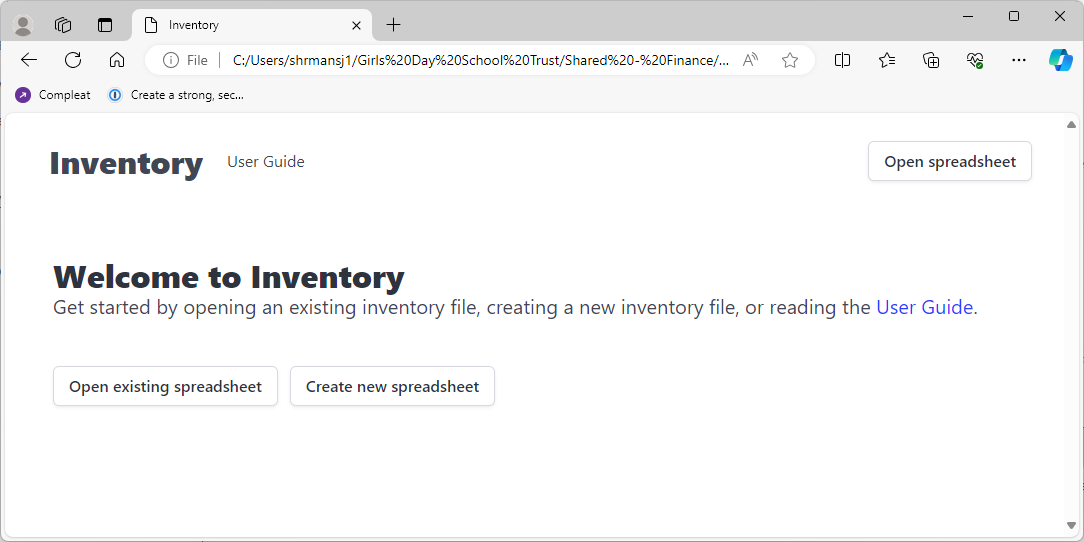
Inventory is a simple system for storing site inventories, categorised by buildings and rooms. It stores its data in a spreadsheet allowing for easy access & data portability.
Graphical User Interface
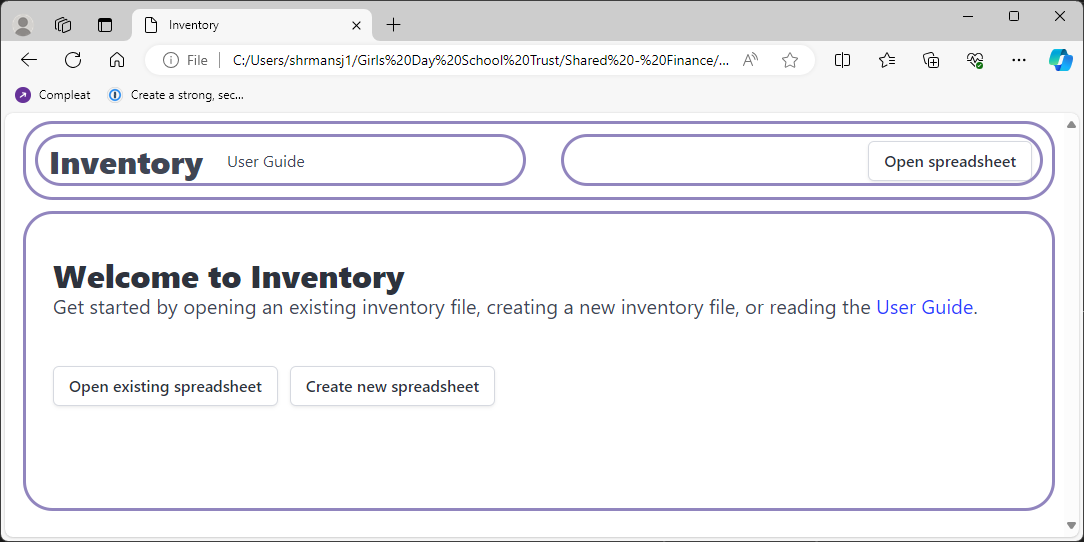
The Inventory Graphical User Interface is split into two sections:
- The navigation bar - shown at the top of the page
- The main content - shown below the navigation bar. This may be a either the welcome page, user guide, or the shown inventory items
These areas are highlighted below:
Navigation Bar
The navigation bar is itself split into 2 sections:
- Navigation links - shown to the left
- Actions - shown to the right. These are shown contextually, so that only relevant actions are available.
Actions may be disabled (they will appear greyed-out) at times, for example:
- Save Spreadsheets button - this will be disabled until the user modifies the Inventory file.
- Open Spreadsheets button - this will be disabled while creating a new file, or opening a file.
Main Content
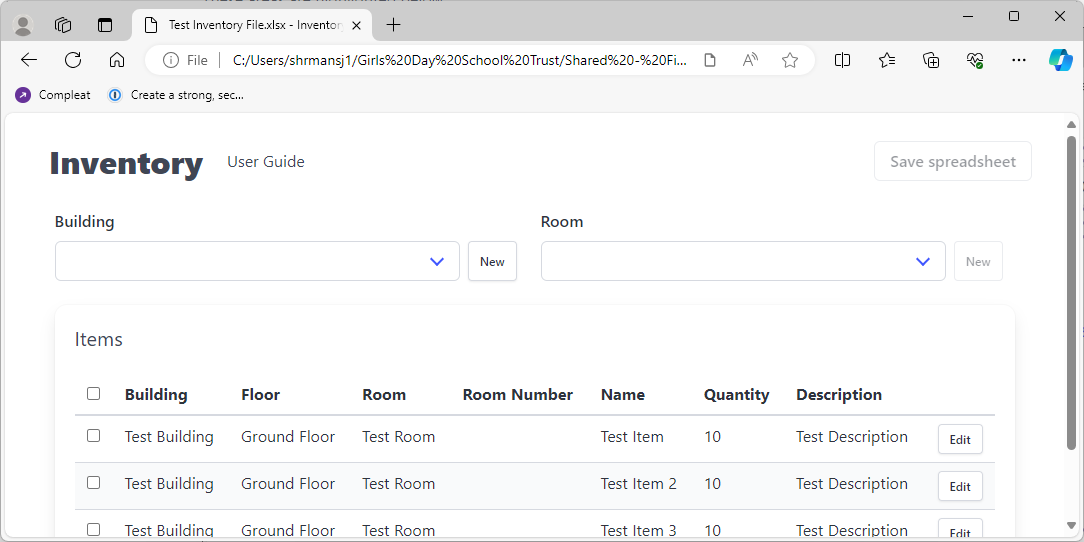
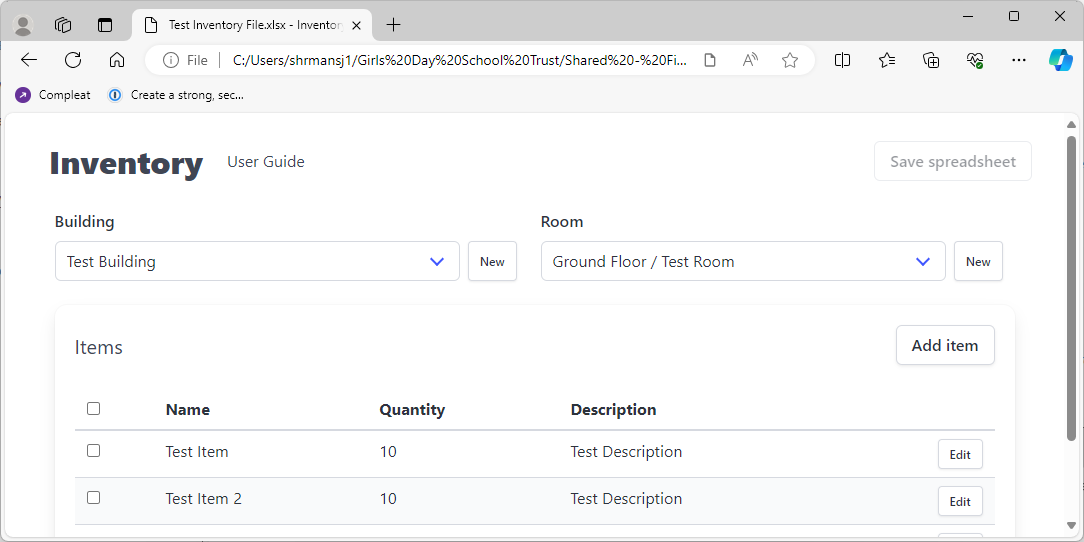
The main content changes depending on which page Inventory is on, and what state the application is in (e.g. an inventory file is open).

Creating an Inventory File
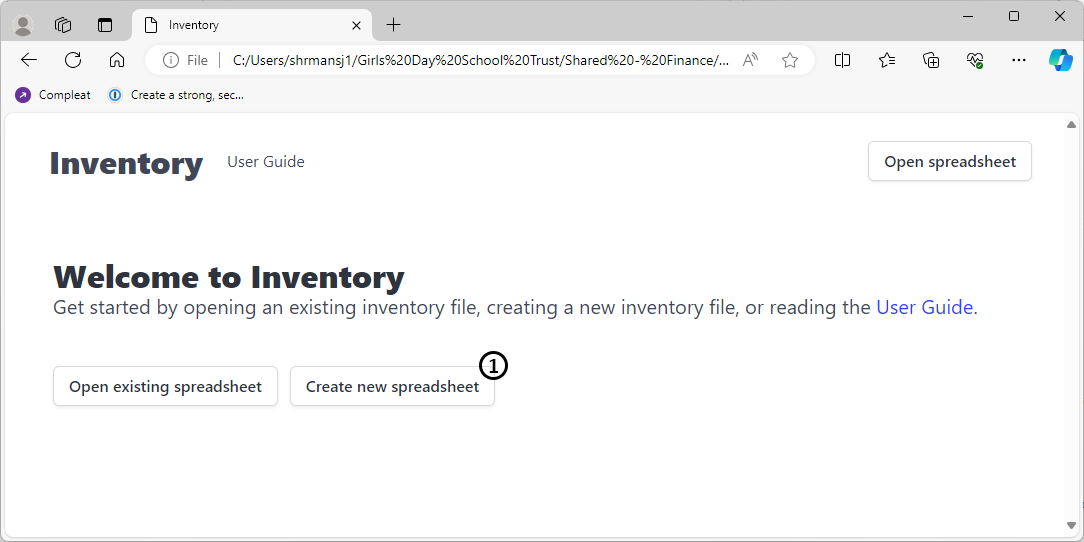
To create a new Inventory file, you may either use the Graphical User Interface to create an empty file (recommended), or you may create your own XLSX document (see technical notes).
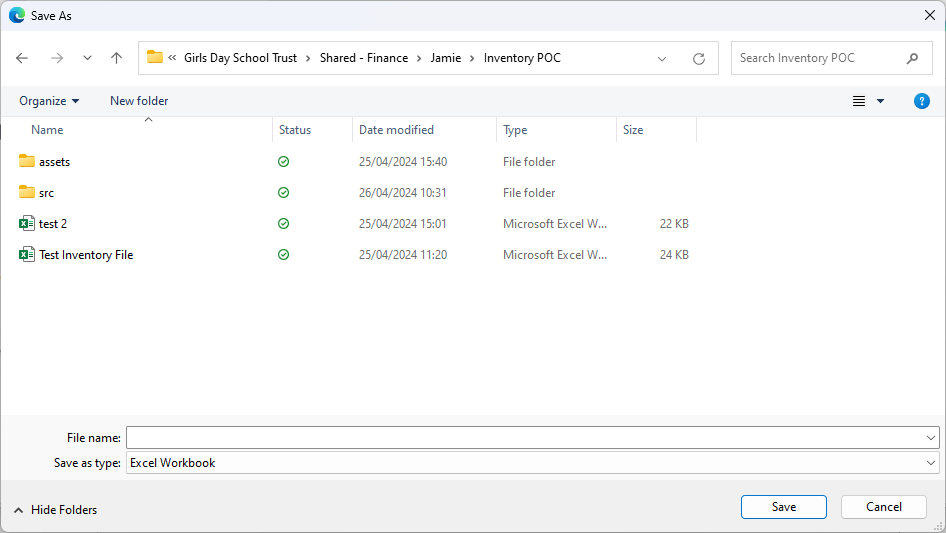
When creating a new Inventory file through the Graphical User Interface, you will be asked where you want to save the file.
Keyboard Shortcuts
Inventory supports a number of keyboard shortcuts to ease use of the software.
| Shortcut Keys | Description |
|---|---|
| F1 | Shows the User Guide. |
| Ctrl+O (Linux, BSD, Windows) / Cmd+O (macOS) | Opens an Inventory file. |
| Ctrl+S (Linux, BSD, Windows) / Cmd+S (macOS) | Saves the currently open Inventory file. |
| Ctrl+Z (Linux, BSD, Windows) / Cmd+Z (macOS) | Undoes the last performed action. |
| Ctrl+Shift+Z (Linux, BSD, Windows) / Cmd+Shift+Z (macOS) | Redoes the last undone action. |
Technical Notes
Inventory File Format
Inventory uses the XLSX format (Excel workbook) to store it's data, and is designed to allow users to modify the workbook directly - by adding new worksheets, or new columns to existing worksheets. Inventory does it's best to retain 'user defined' fields and sheets.
Inventory Worksheet
Inventory reads item data from a worksheet named Inventory. When Inventory reads this worksheet, it creates a mapping of columns so that user's can include/exclude headings and re-arrange them to suit them. This worksheet may contain the following columns:
| Column Name | Required / Optional | Description |
|---|---|---|
| Building | Required | The name of the building, the room is situated within. |
| Floor | Required | The floor (0-indexed) of the building, the room is situated within. |
| Room | Required | The name of the room. |
| Room Number | Optional | The number or reference given to the room. |
| Name | Required | The name of the item. |
| Quantity | Required | The quantity of the item. |
| Description | Optional | The description of the item. |
Browser Support
Inventory relies on the File System Access API which is currently (as of 19th April 2024) a draft specification proposed by Google editors.
Currently the only browser engine to implement this specification is Chromium, with WebKit (Apple) and Gecko (Mozilla) opposed to the proposed standard.
Practically this means the following browsers are supported by Inventory:
- Google Chrome
- Microsoft Edge
- Opera
Open-Source Licences
Inventory uses the following open-source software:
| Name | Description | Licence |
|---|---|---|
| Bulma | CSS framework | |
| SheetJS | Library for reading spreadsheets | |
| @github/check-all | Utility library for multiple checkbox selection | |